How to Send a Long Video on WhatsApp Without Losing Quality
WhatsApp compresses videos, even with HD on. Send the original file as a document (up to 2 GB), or use these options for longer, larger clips.
By Save Downloads Team Published 6 min read How we write and test
You send a sharp 1080p clip and your friend receives something blurry and blocky. That’s WhatsApp’s compression doing its job: it shrinks videos so they send fast and don’t eat everyone’s data. When quality matters, a wedding clip, a project video, footage someone needs to edit, there’s a better way to send it.
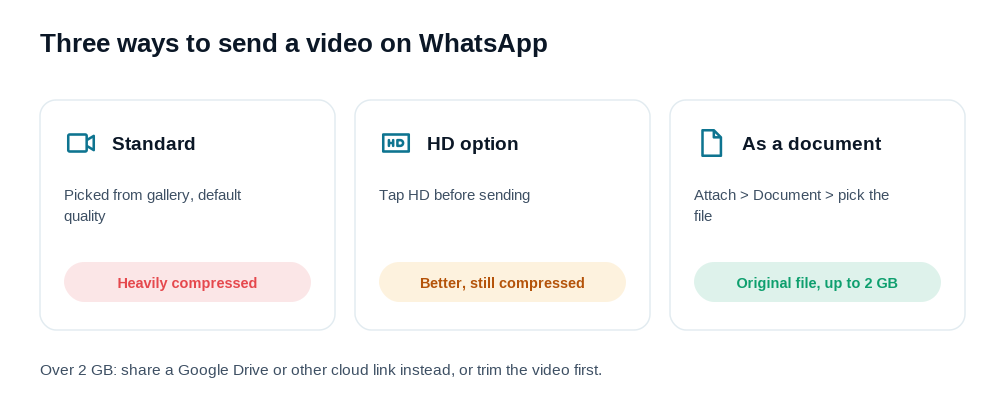
Option 1: Send it as a document (original quality, up to 2 GB)
This is the method that keeps every pixel. WhatsApp treats the video like any other file and doesn’t touch it. Since 2022 the document size limit has been 2 GB, which covers most phone recordings up to around 15 to 30 minutes of 1080p, depending on the camera’s bitrate.
On Android:
- Open the chat and tap the paperclip (attach) icon.
- Tap Document, not Gallery.
- Tap Browse other docs and go to the video. Phone recordings are usually in DCIM > Camera; downloaded videos are usually in Download or Movies.
- Tap the file and then Send.
The recipient sees a file with its name and size. They tap to download it, and it opens in their video player at full quality.
Tip: rename the file before sending (for example Aliya-wedding-dance.mp4 instead of VID_20261103_201455.mp4). The name shows in the chat, and it makes the file easier to find later.
Option 2: Use the HD option (better, but still compressed)
When you pick a video from the gallery, WhatsApp shows an HD button at the top of the editing screen. Tapping it sends a higher-quality version than the default. It’s a reasonable middle ground for clips people will just watch on their phones, and the video still plays inline in the chat.
But be clear about what it is: HD is still a re-encoded copy. Fine detail, low-light footage and fast motion will look worse than your original. If the recipient needs to edit, print stills or keep the video long term, use the document method.
Also check Settings > Storage and data > Media upload quality in WhatsApp. Setting it to HD quality makes HD the default so you don’t have to tap the button every time.
Option 3: Standard send (smallest, lowest quality)
The default. WhatsApp shrinks the video heavily, which is great on a slow connection or for a quick funny clip, and bad for anything you care about. Long videos may also have to be trimmed in the send screen.
How big is the difference?
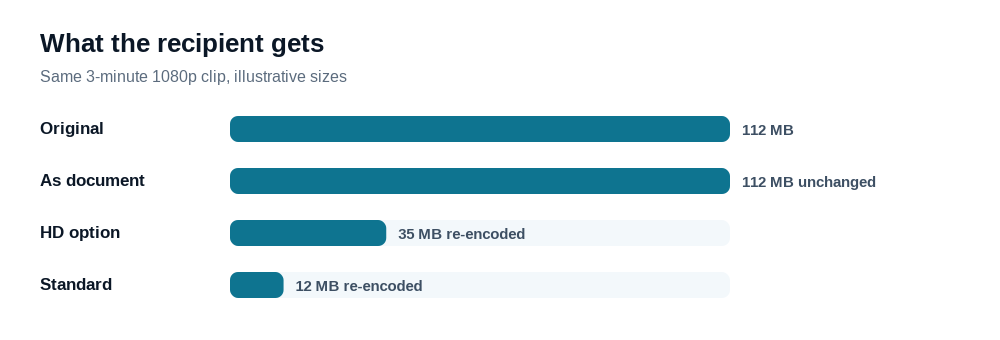
A smaller file isn’t always worse to the eye on a small screen, but every step down discards information that can’t be recovered. A clip sent the standard way and then forwarded a few times gets visibly worse each time it’s re-shared.
Videos larger than 2 GB
Long recordings in 4K pass 2 GB quickly (a phone shooting 4K at 40 to 50 Mbps fills 2 GB in about six minutes). You have three options:
- Share a cloud link. Upload to Google Drive, OneDrive, Dropbox or similar, set sharing to “anyone with the link”, and paste the link into the chat. The recipient downloads the original.
- Trim the video. Cut the parts that don’t matter in Google Photos (Edit > trim) or your gallery’s editor. Trimming without other edits is quick.
- Split it into parts under 2 GB each with a video editor and send them as separate documents.
Saving videos people send you
Videos you receive the normal way are saved in Android/media/com.whatsapp/WhatsApp/Media/WhatsApp Video and usually show up in your gallery. Videos received as documents go to the WhatsApp Documents folder in the same place and may not appear in the gallery; open them from the chat or a file manager. If you want to know where the status videos you watch are kept, see where WhatsApp statuses are stored.
Don’t fill your phone
Documents bypass compression, so they also bypass size savings. If you’re in a busy group where people send full-size videos, WhatsApp’s media can grow fast. Settings > Storage and data > Manage storage lists the largest files and forwarded media so you can clear them. More ideas are in our guide to freeing up storage without deleting photos.
Summary
To send a video in original quality, attach it as a Document (up to 2 GB). The HD option looks better than standard but is still compressed. For anything over 2 GB, share a cloud link or trim the video first.
Sources and further reading
Frequently asked questions
What is the maximum video size on WhatsApp?
Sent as a document, a file can be up to 2 GB. Sent as a normal video from the gallery, WhatsApp compresses it, and very long videos may be trimmed or need to be shorter before sending.
Does the HD option send the original quality?
No. HD keeps more detail than the standard option, but WhatsApp still re-encodes the video. Only sending it as a document keeps the original file untouched.
Will a video sent as a document play inside the chat?
The recipient taps the file to download it, then it opens in their video player. It doesn't play inline like a normal video, but it arrives in full quality.
How do I send a video bigger than 2 GB?
Upload it to Google Drive, OneDrive or a similar service and share the link in the chat, or trim and split the video into parts under 2 GB.
Save videos, photos and audio on Android
Save Downloads is free, needs no account, and shows the real file size before every download.
Free · v1.0.3.1 · 97.9 MB · Android 7.0 or newer · How to install