Privacy
4 Ways to Hide Photos and Videos on Android, Compared
Google Photos Locked Folder, Samsung Secure Folder, Files by Google Safe folder or an app vault? What each one protects, what it doesn't, and which to use.
By Save Downloads Team Published 8 min read How we write and test
Everyone has something on their phone they’d rather a friend scrolling through the gallery didn’t see: ID scans, medical documents, a surprise gift, personal videos. Android has several ways to hide files, and they’re not equal. Some are proper locked storage; one popular trick hides nothing from anyone who looks.
We build a vault into our own app, so we’ve spent time comparing the alternatives honestly. Here’s how the four main options stack up.
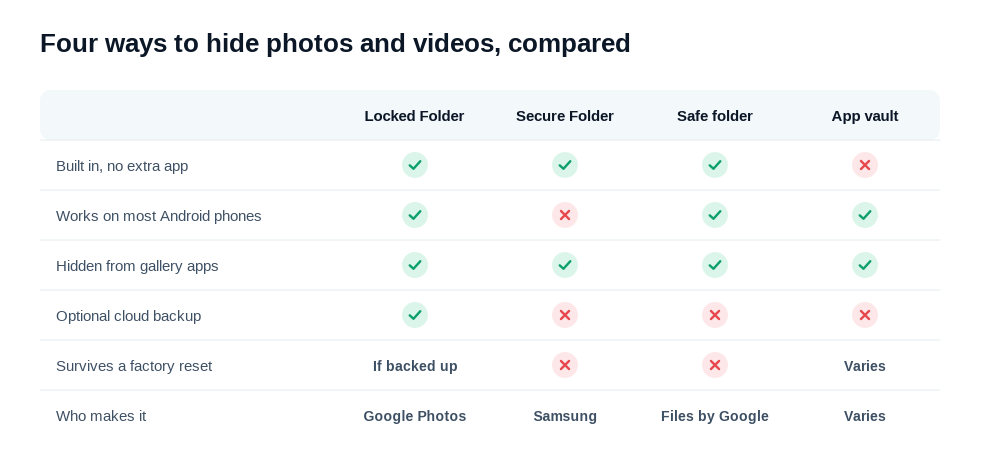
1. Google Photos Locked Folder
Best for: most Android users.
Locked Folder is part of the Google Photos app. Items you move there disappear from the photo grid, albums, Memories and search, and opening the folder needs your phone’s screen lock (PIN, pattern or fingerprint).
- Requirements: Android 6.0 or newer and a screen lock set on the phone.
- How: open Google Photos > Collections (or Library) > Utilities > Locked Folder, or open a photo, tap the three dots and choose Move to Locked Folder.
- Backup: off by default. Turn on Photos settings > Backup > Back up Locked Folder if you want items synced and available on your other devices. Backed-up items count towards your Google storage.
- The catch: without backup, Locked Folder items are deleted if you uninstall Google Photos, clear its data or reset the phone. Google says this plainly in its help page.
2. Samsung Secure Folder
Best for: Samsung Galaxy owners who want a whole separate private space.
Secure Folder creates an encrypted second space on the phone, protected by Samsung Knox. It’s more than a photo vault: you can put a second copy of apps inside it (a separate WhatsApp or banking app, for example), and they run isolated from the rest of the phone.
- How: Settings > Security and privacy > More security settings > Secure Folder.
- Strength: strong isolation and its own lock, separate from the phone’s lock if you want.
- The catch: only on Samsung phones. Backup goes through Samsung Cloud (where available). If you forget the Secure Folder lock and haven’t linked a Samsung account to reset it, the contents can be lost.
3. Files by Google Safe folder
Best for: documents and files, on any phone that has the Files by Google app.
Safe folder is a PIN- or pattern-protected folder inside the Files app. Files moved there are hidden from other apps.
- How: Files by Google > Browse > scroll to Collections > Safe folder. Set a PIN or pattern.
- Strength: works for any file type, not just photos: PDFs, ID scans, audio.
- The catch: no cloud backup. Uninstalling Files or clearing its data deletes what’s inside. There’s also no way to recover a forgotten PIN.
4. A vault inside another app
Best for: keeping private files next to the app you already use for media.
Many gallery, file manager and download apps include a vault. Quality varies a lot, so check three things before trusting one:
- Are files actually encrypted, or just moved to a hidden folder? Encryption means the files are unreadable even if someone copies them off the phone.
- Does it block screenshots and hide its preview in the recent apps screen?
- What happens on uninstall? Almost every vault deletes its contents with the app.
In Save Downloads, the vault encrypts each file you add with AES-256-GCM using a key kept in Android’s secure key storage, removes the original from the gallery, and opens with a PIN or your fingerprint. The vault screen sets Android’s secure flag, which is why you can’t take a screenshot of it. When we tried for our own vault guide, the screenshot came out black, so that guide uses drawings instead. Like the others, there’s no cloud copy: move files out before uninstalling.
The trick that isn’t private: .nomedia
You’ll find advice to create an empty file named .nomedia inside a folder to hide it. This does stop gallery apps from showing the folder, because Android’s media scanner skips it.
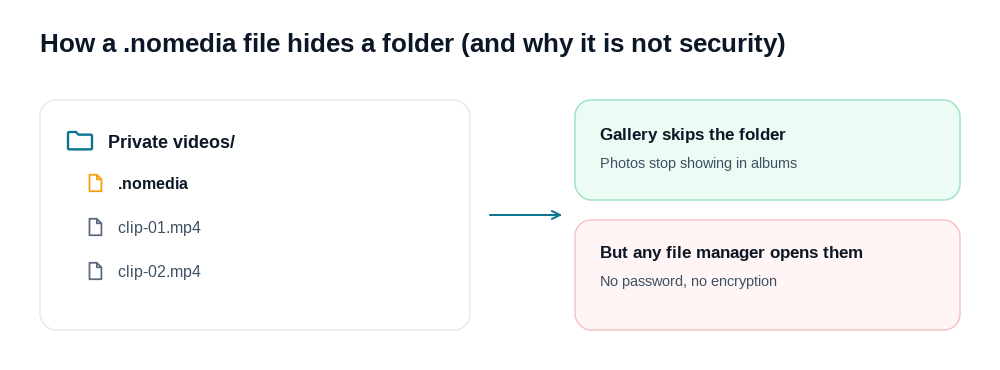
But there’s no password and no encryption. Anyone who opens a file manager can browse straight to the folder and play every file. It’s handy for keeping app thumbnails or ringtones out of your photos; it’s not a way to protect anything.
Which one should you use?
| Your situation | Good choice |
|---|---|
| Any Android phone, want a backup | Google Photos Locked Folder with backup on |
| Samsung phone, want private apps too | Secure Folder |
| Documents and PDFs, no cloud | Files by Google Safe folder |
| Videos you saved with a download app | That app’s vault, if it encrypts |
| Just want a tidier gallery | .nomedia (not private) |
Habits that matter more than the app
- Set a screen lock that isn’t your birth year. Every option above depends on it in some way.
- Keep a backup of anything irreplaceable somewhere you control. Hidden folders are the first thing people lose when a phone is reset.
- Turn off lock-screen notification previews for chat apps, or private photos can show up before the phone is unlocked.
- Watch for cloud sync. If a photo was already backed up to Google Photos before you hid it in a vault, the cloud copy still exists. Delete it there too.
Summary
Google Photos Locked Folder is the best default for most people, Samsung Secure Folder is the strongest option on Galaxy phones, and Files by Google Safe folder suits documents. App vaults are fine if they encrypt files and block screenshots. A .nomedia file only tidies your gallery and protects nothing.
Sources and further reading
Frequently asked questions
What is the best way to hide photos on Android?
For most people, Google Photos Locked Folder: it's free, built into Google Photos, needs your screen lock to open and can optionally back up to the cloud. Samsung owners can also use Secure Folder.
Does a .nomedia file hide photos securely?
No. It only tells gallery apps to skip the folder. Anyone who opens a file manager can still see and open the files. Use it for tidiness, not privacy.
What happens to hidden photos if I uninstall the app?
With most vaults the files are deleted along with the app unless they were backed up. Google Photos Locked Folder items survive only if Locked Folder backup is turned on. Always move important files out before uninstalling.
Are files in the Save Downloads vault encrypted?
Yes. Files you add are encrypted on the phone with AES-256-GCM, removed from the gallery, and the vault screen blocks screenshots and hides its preview in the recent apps list.
Save videos, photos and audio on Android
Save Downloads is free, needs no account, and shows the real file size before every download.
Free · v1.0.3.1 · 97.9 MB · Android 7.0 or newer · How to install