
App guide 5 of 5
How to Lock Private Photos and Videos in the Save Downloads Vault
Set a PIN, add photos and videos, and unlock with your fingerprint. How the Save Downloads vault encrypts files, and what to know before uninstalling.
Quick steps
- Open the Vault. Go to Settings > Vault, or tap Vault in the Play tab's filters.
- Set a PIN. Choose a PIN the first time. You can also unlock with your fingerprint or screen lock.
- Add files. Tap Add files and pick photos or videos. They're encrypted and hidden from your gallery.
- Move downloads in. From the video player, tap Vault to move a downloaded video straight into the vault.
The vault keeps personal photos and videos out of your gallery and locked behind a PIN or fingerprint. This guide covers setting it up and moving files in and out.
One note before we start: you won’t find real screenshots of the vault here. The vault screen tells Android to block screenshots, and when we tried on our test phone the image came out completely black. That’s the protection working. The drawings below match the real screens.
Step 1: Open the vault
Go to Settings > Vault (“Private files behind your PIN”), or tap the Vault filter in the Play tab’s Library.
Step 2: Set your PIN
The first time, you choose a PIN. After that, the vault opens with your PIN, or with your fingerprint or phone screen lock if your phone supports it.
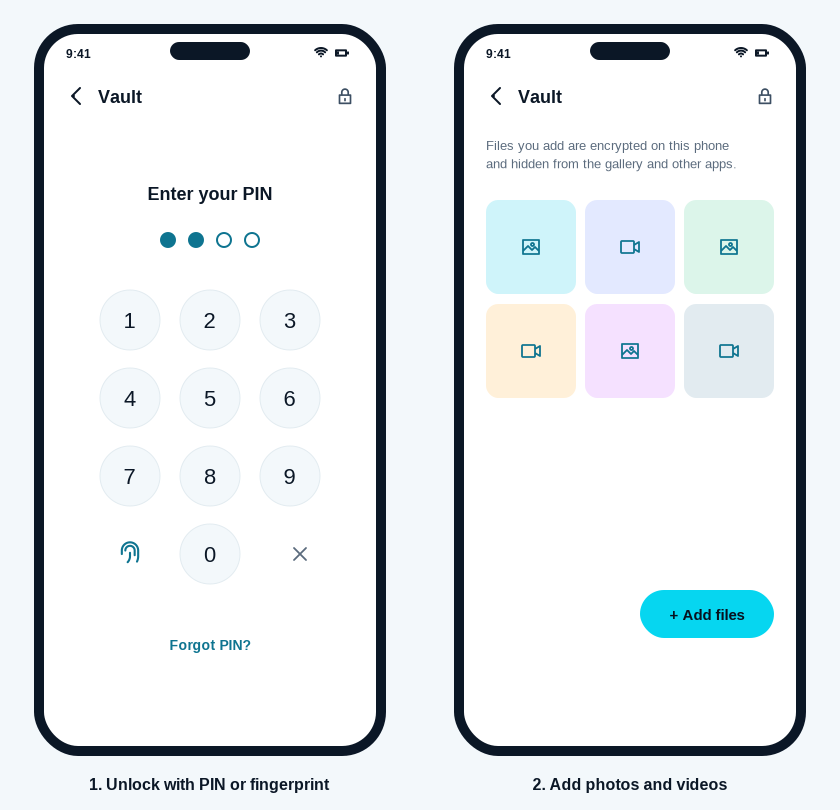
Pick a PIN that isn’t your birth year or 1234. If you forget it, tap Forgot PIN? on the lock screen: you confirm it’s you with your phone’s own screen lock, then choose a new PIN.
Step 3: Add photos and videos
Tap Add files and pick items from your phone. As the app explains on the empty vault screen: files you add are encrypted on this phone and hidden from the gallery and other apps.
To move a video you downloaded, open it in the player and tap Vault in the row of shortcuts under the video. You can also filter your Library by Vault to see what’s inside.
How the protection works
- Encryption: each file is encrypted with AES-256-GCM. The key is created and kept by Android’s secure key storage, not written in a file the app can export.
- Hidden from other apps: vault files live in the app’s private storage, so galleries and file managers can’t list them.
- Screen protection: screenshots, screen recording and the recent-apps preview are blocked while the vault is open.
Before you uninstall or reset your phone
There is no cloud backup of the vault. That’s deliberate: files never leave your phone. But it means uninstalling the app, clearing its data or resetting the phone deletes vault files permanently. Move anything important out of the vault first.
For other ways to hide files, including Google Photos Locked Folder (which can back up), see our comparison of four ways to hide photos and videos on Android.
Related
Questions about this guide
Are vault files really encrypted?
Yes. Each file is encrypted on the phone with AES-256-GCM, using a key stored in Android's secure key storage. The encrypted file can't be opened outside the app.
What happens to vault files if I uninstall the app?
They're deleted with the app, because they live in its private storage and there is no cloud copy. Move anything you want to keep out of the vault before uninstalling.
Why can't I take a screenshot of the vault?
The vault screen blocks screenshots and screen recording, and hides its preview in the recent apps list, so private files can't be captured by accident.
Need the app?
Free · v1.0.3.1 · 97.9 MB · Android 7.0 or newer · How to install