
App guide 1 of 5
How to Download a Video with Save Downloads (Step by Step)
A screenshot walkthrough of downloading a video with the Save Downloads Android app: paste a link, pick a quality with its real size, and play it offline.
Quick steps
- Copy the video link. In the app or browser where you're watching, tap Share and then Copy link.
- Paste it in Save Downloads. Open Save Downloads. Tap the 'Search or paste a link' box, paste the link and tap search, or accept the copied-link prompt.
- Choose a quality. A sheet lists every available quality with its exact file size. Pick one and tap Download.
- Watch the progress. Open the Play tab and choose Downloading to see speed and progress, pause or cancel.
- Play it offline. When it finishes, the file is in Play > Library and in Download/SaveDownloads on your phone.
This guide follows one real download from start to finish, using screenshots taken on our Redmi 14C test phone with Save Downloads version 1.0.3.1. For the example we used Big Buck Bunny, a short film the Blender Foundation released under a Creative Commons licence, so it’s free to download and share.
If you haven’t installed the app yet, start with the install guide. It takes about a minute.
Step 1: Copy the video’s link
Open the post or page with the video you want. In almost every app, tap Share and then Copy link. In a browser, copy the address from the address bar.
You can also share directly: in the share menu, pick Save Downloads, and the app opens with the link already filled in.
Step 2: Paste the link into Save Downloads
Open the app. The Download tab is the first screen. Tap the box that says Search or paste a link, paste the link (or tap the clipboard icon on the right of the box), and tap search on your keyboard.
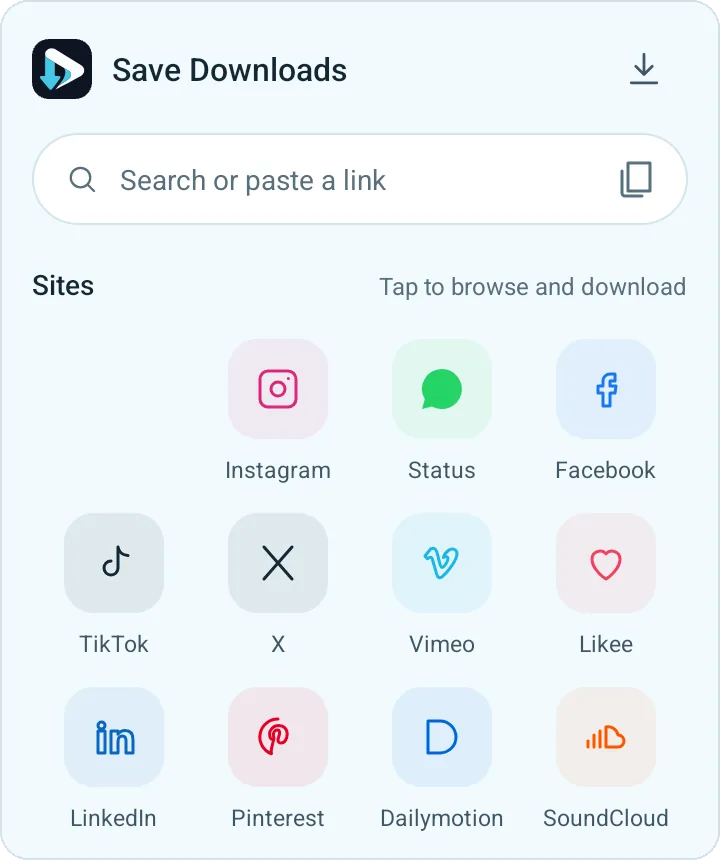
If Clipboard link detection is on (it is by default), the app notices a copied link when it opens and offers to fetch it, so you can skip the pasting. You can turn this off in Settings.
The Sites grid below the box is another way in: tap a site to browse it inside the app, then use the download button on the video you want.
Step 3: Choose a quality
After a moment, a sheet slides up with the video’s title and every quality the site offers. Each option shows its real file size, measured before downloading, and the top of the sheet shows how much free space your phone has.
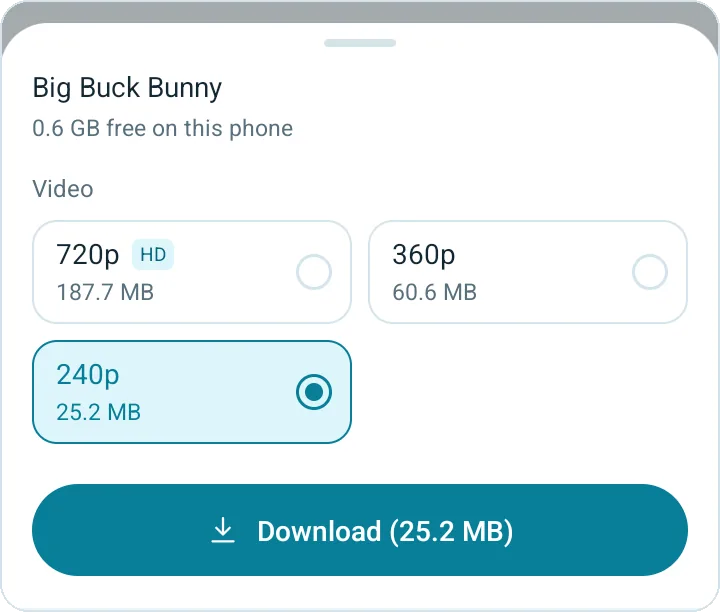
Tap the quality you want. The Download button updates to show the size you’ve chosen, here Download (25.2 MB). If you only want the sound, choose the Music option when it’s offered to save an MP3.
Not sure which to pick? On a phone screen, 720p is the sweet spot. Our article on video file size per minute explains the trade-off.
Step 4: Watch the progress
Tap Download. The sheet closes and the download starts in the background with a notification showing progress. To see it in the app, open the Play tab and tap Downloading.
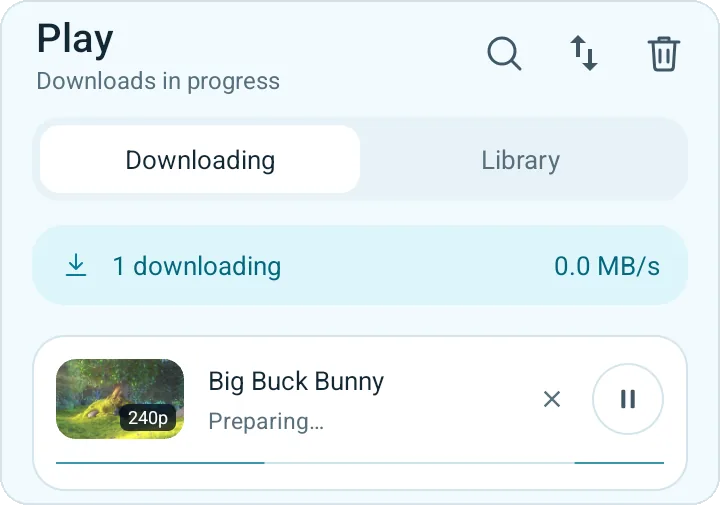
Large files are downloaded in parts. If your connection drops or you pause, the download continues from where it stopped instead of starting over. If downloads stop when you lock the screen, your phone’s battery saver is probably closing the app; this article shows the setting to change for each phone brand.
Step 5: Find and play the video
When the download finishes, it moves to Play > Library. The badge on the thumbnail shows the quality, and the line below shows the size.
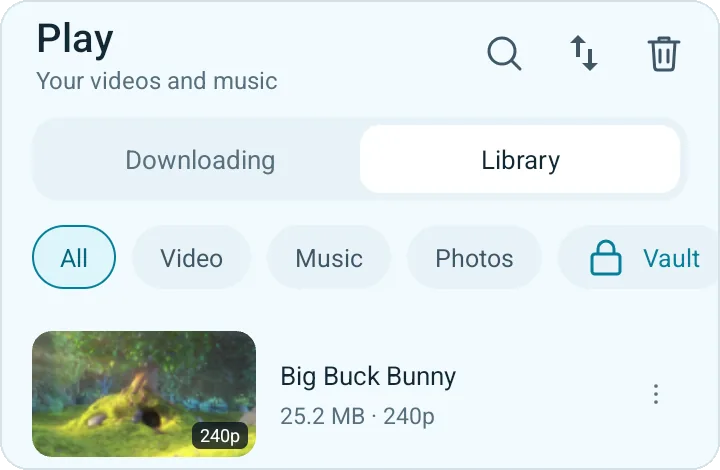
Tap it to open the built-in player. Under the video you’ll find shortcuts:
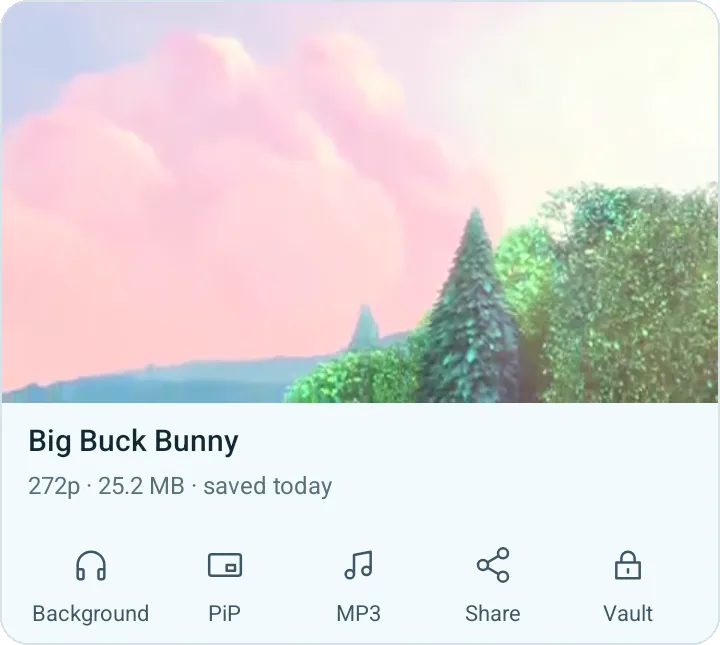
- Background: keep the sound playing with the screen off or while you use other apps.
- PiP: shrink the video into a floating window.
- MP3: save the audio as a separate MP3 file.
- Share: send the file to another app.
- Vault: move the file into the encrypted vault.
The file is also a normal video on your phone, in Download > SaveDownloads, so it shows up in your gallery and file manager. To change that folder, see the download settings guide.
If something goes wrong
- “Couldn’t get formats”: the link may be private, deleted, or limited to some countries. Check that the post opens in a browser without logging in, then tap Retry.
- No sound: rare with Save Downloads because it checks for an audio track, but if it happens, see why a downloaded video has no sound.
- Can’t find the file: look in Play > Library first, then Download > SaveDownloads. This article covers other places to check.
Please only download videos you have the right to keep, and credit creators if you share their work.
Questions about this guide
Do I need an account to download?
No. Save Downloads has no sign-up and never asks for your social media login.
Why does the quality list show different sizes?
Each quality is a separate file from the site. The app reads the real size of each before you download, so you know exactly how much space it will take.
Can I download several videos at once?
Yes. By default up to five downloads run at the same time and extra ones wait in a queue. You can change the number in Settings > Download settings.
Need the app?
Free · v1.0.3.1 · 97.9 MB · Android 7.0 or newer · How to install